
Steps on how to Change the IP Address parameter in Windows 7
Article by: charles
Last Modified: 2025-07-02 12:14:31
This short step by step guide will help you learn how to change IP address in your Windows 7 system. By the way, change of IP in Windows 7 is easy.
This short step by step guide will help you learn how to change IP address in your Windows 7 system. By the way, change of IP in Windows 7 is easy.
If you don't know what IP parameters to change to, please contact your network administrator.
Step by Step Instructions on How to Change the IP address set in your Windows 7
- Click on "Start" then on "Control Panel".
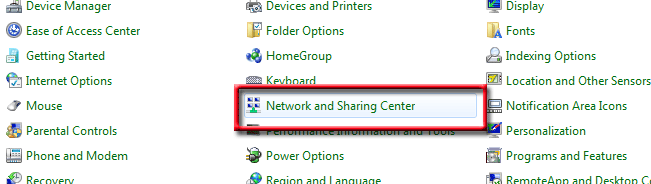
NB: if you can't see "Network and Sharing Center" as above, change the "View by:" setting on the top right corner to "Small icons".
- Click on "Network and Sharing Center" and the following window appears:
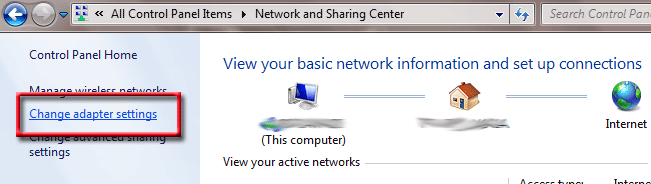
- Click on "Change adapter settings" and several adapter card icons will be displayed .
- Double click on the icon representing the adapter for which you want to change IP address:
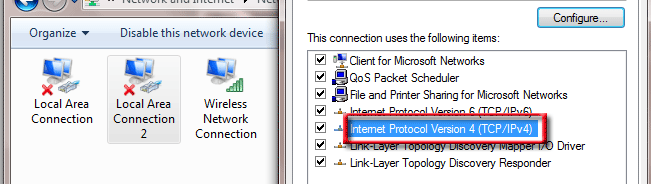
NB: For Wireless cards, you might need to right-click its icon and and click on "properties" on the drop-down menu - Select Internet Protocol Version 4 for TCP/IPv4 Ip setting and click on "properties" and enter IP parameters as desired.
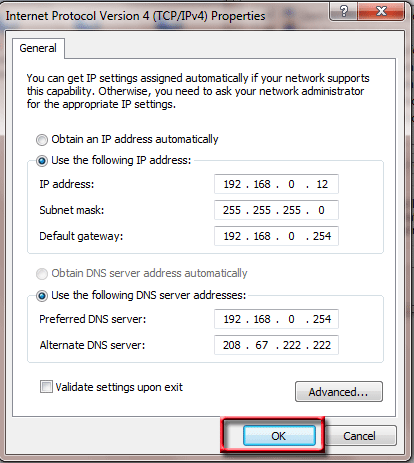
If you are not sure what to write here, contact you network admin - Click "OK" to save your parameters and you are done.
Some observations
While changing IP address in windows 7, you will find out that setting two adapters with the same Gateway IP wall cause windows to reject the new configurations. Similarly, if the change is being made by a DHCP server, windows 7 may not pick the new DHCP configuration being issued. Be sure of those before you change the IP setting.
You can also change how the world sees your IP address. At the moment, your IP address is seen as: 216.73.216.97 and using this IP, one can tell that you are located in . You can use this VPN solution to hide your IP. This secures your link to ensure that Man-in-the middle attack cannot succeed when launched against you.


